operations_nzpost
Last updated: Mar 17, 2026 by Brad Hodgson
Versions: 19,18, 17
Dependencies:
"stock",
"delivery",
"operations_courier_integration"
Details:
This module integrates with New Zealand Post to provide delivery pricing and shipping.
The NZ Post online portal is called eShip https://eship.nzpost.co.nz/ and is a branded website of StarshipIt, http://www.starshipit.com. The portal enables the client to create new shipping orders, print labels, and view order delivery status. In our case, order creation is done via API by Odoo, and label printing is handled in Odoo as well.
We use the NZ Post ShippingOptions API, passing the originating and delivery address and the parcel dimensions, and receiving delivery options with prices https://anypoint.mulesoft.com/exchange/portals/nz-post-group/b8271f09-2ad8-4e1c-b6b1-322c5727d148/shippingoptions-api/.
To generate and retrieve the courier label we use the StarShipAPI (Shipment - Print Label) https://api-docs.starshipit.com/#b6bc3576-a43f-4992-86d8-8fdf57f872f6.
Setup - NZ Post Account:
- If they don't have one already, client creates a business account at https://www.nzpost.co.nz/. Needs to be a business account as that includes the eShip portal.
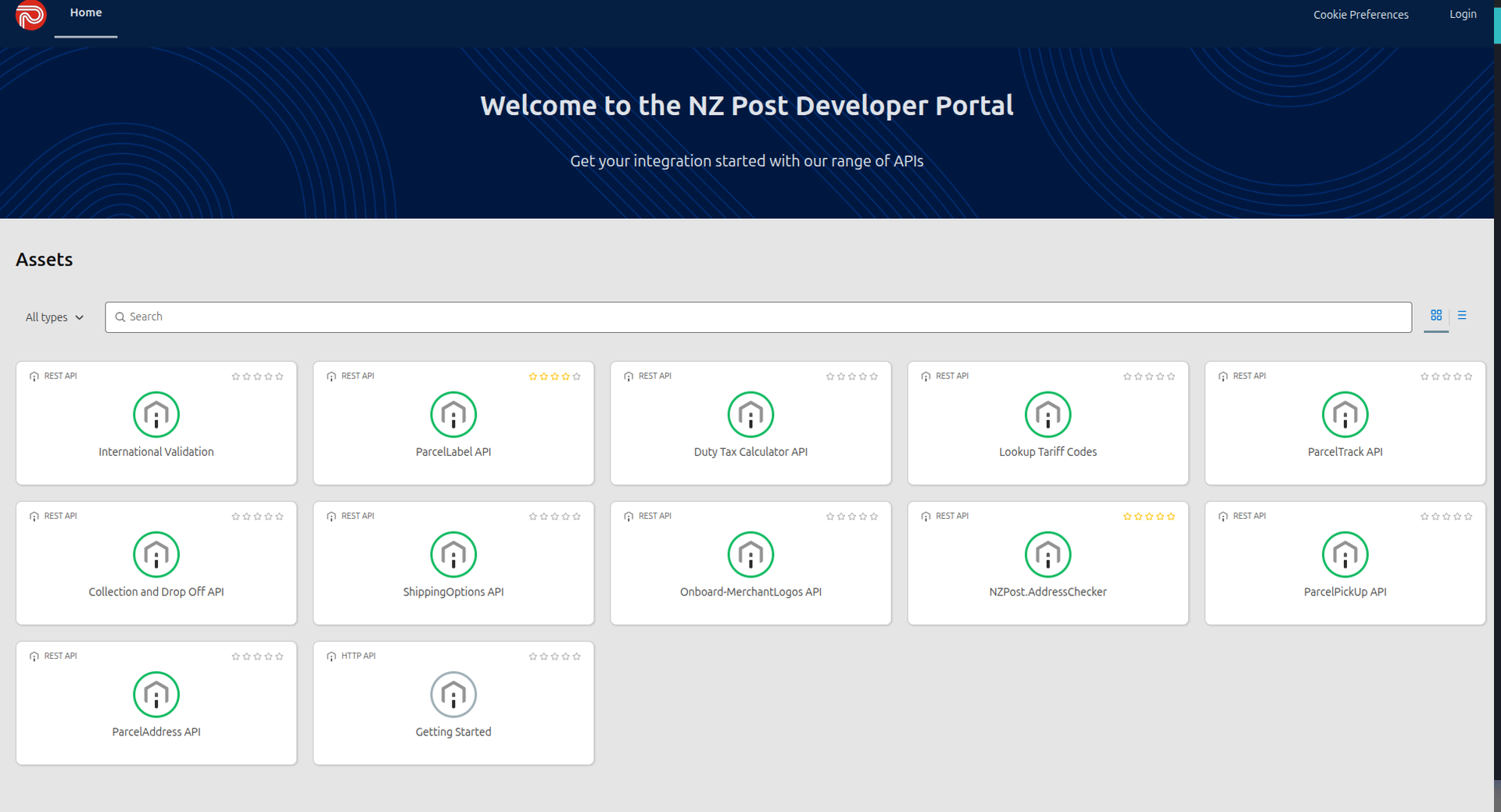
- Create a new application at https://anypoint.mulesoft.com/exchange/portals/nz-post-group/applications/, e.g. "Odoo". Ensure you choose the ShippingOptions API to use and Client Credentials Grant is ticked. Choose the production instance - this is fine even if you're testing, as NZ Post won't actually process the delivery until the delivery label is scanned by a courier (which you won't do, right? :-))
NZ Post Development Portal - Select Shipping Options API
Request Access

Form to Complete
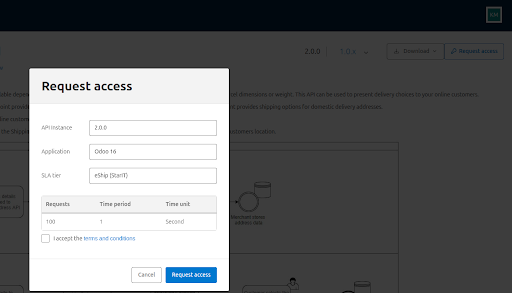

- The application will be reviewed by NZ Post, once approved the Client Id and Secret will be listed under the application.
- You will also need the eShip API details, these can be found under Settings - API at https://eship.nzpost.co.nz/.
- Once done, the client run configuration file requires the following sections added, using the credentials gathered from above:
[operations-nzpost]
nzpost_auth_endpoint = https://oauth.nzpost.co.nz/as/token.oauth2
nzpost_endpoint = https://api.nzpost.co.nz/shippingoptions/2.0/domestic
nzpost_client_id = cc22e225299143b7de9e5eb73469c9
nzpost_secret = 02AceC1815B643a0529F5bC5e2a31A
dev_mode = False
[eship-integration]
eship_endpoint = https://api.starshipit.com/api
eship_api_key = 67433c7f05064a9e9531b87c81b4df
eship_subscription_key = e6a3d713e87f8c9c2b3dfd35034b16
dev_mode = False
Setup - eShip Courier Code/Shipping Method Rules:
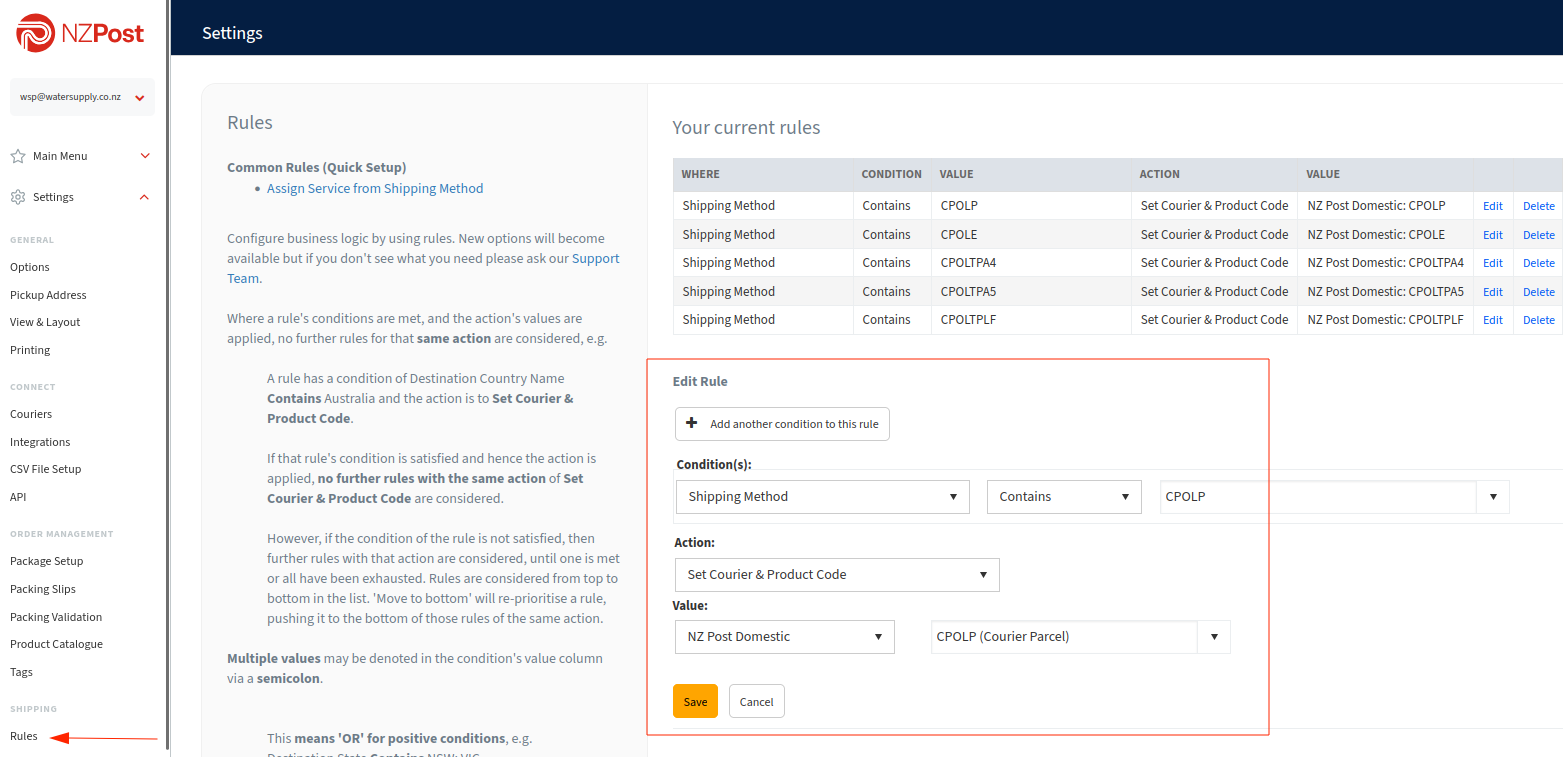
In eShip, you need to define the courier and product linked to each shipping method. Without this, the correct product won't be linked to the order when it is created in eShip.
- Login to eShip eship.nzpost.co.nz, and go to Settings then Rules.
- Click Add a new rule then set:
- Repeat the above for each parcel type used.
Condition | Shipping Method - Contains - {NZ Post shipping method code} e.g. CPOLP for courier Parcel |
Action | Set Courier & Product Code |
Value | NZ Post Domestic - {NZ Post Courier Code}. This should match the shipping code e.g CPOLP |
Setup - Shipping Method:
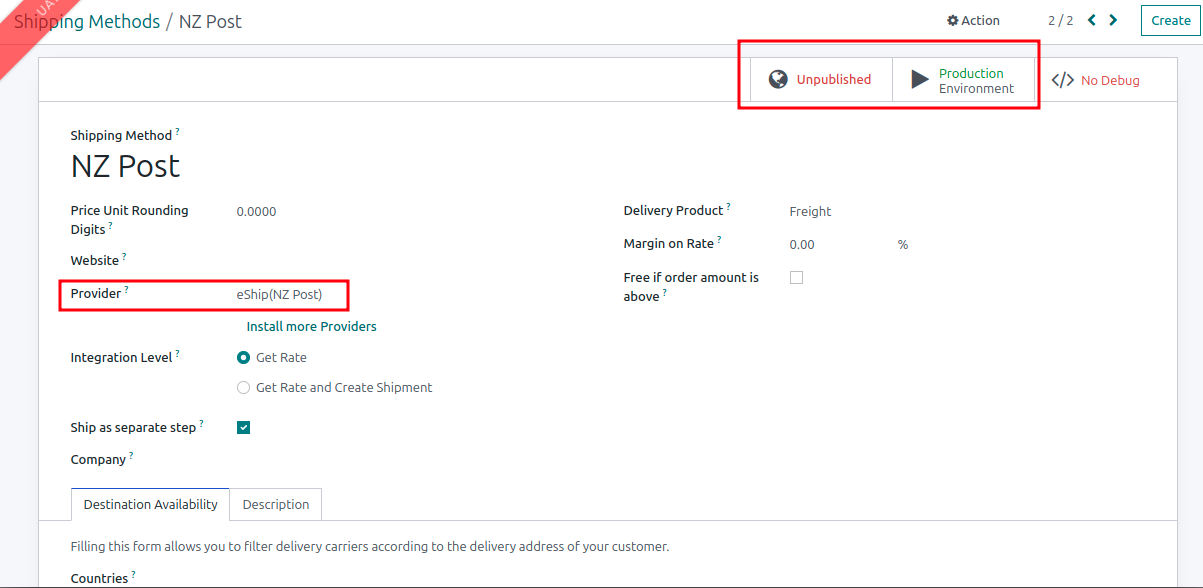
Under Inventory - Configuration - Shipping Methods in Odoo, add an entry for NZ Post, with the Provider set to "eShipNZ (NZ Post)". Set the environment to Production (as mentioned previously this doesn't matter as long as you don't scan the delivery labels), and leave it as Unpublished.
If you set a website and change to be to Published, it will appear as a freight option on that website. Note: at time of writing this comes up with an error, as it attempts to get the price for the order at that time. For Producto as we didn't want it as an option on the website but rather to be chosen on the delivery, it wasn't applicable and so the error hasn't been investigated.